Application Proxy
This step configures secure external access to your on-premises QGIS Server by setting up Microsoft Entra Application Proxy. It establishes the secure connection between your internal server and authorised users outside your network, without exposing your internal resources directly to the internet.
Required permissions:
- Administrator permissions on the on-premises server where QGIS Server resides
- An Entra ID service account with Application Administrator permissions
Please read carefully before executing the steps below.
This guide is based on, and refers to, steps outlined in the following Microsoft tutorial:
This document assumes that the first two steps, Prerequisites and Prepare your on-premises environment, have already been followed.
Entra ID features and portal screens change frequently, so this guide may not always exactly match the current interface.
Please contact your Pozi support provider if you encounter any inconsistencies so we can update the documentation.
Visit the Microsoft Entra admin centre at https://entra.microsoft.com/.
1. Install connector on the on-premises server
The connector is a required piece of software that manages the outbound connection from the on-premises application server to Application Proxy in Microsoft Entra ID. It runs as a service.
Tutorial: Install and register a connector

- Click Download connector service, then Accept terms & Download.
- Transfer the downloaded file, for example
AADApplicationProxyConnectorInstaller.exe, to the on-premises server. - Run the installer and follow the instructions.
Screenshots of connector installation process


2. Add Pozi Server to Entra ID
This section describes how to add Pozi Server, the on-premises application, to Entra ID as an Enterprise Application.
Tutorial: Add an on-premises app to Microsoft Entra ID


In the Add your own on-premises application section, provide the following information about your application.
Basic

Name:
Pozi Serveris recommended. Administrators may choose a different name if it better suits the organisation’s naming policies.Internal URL:
http://<internal-server-name>/pozi/. Replace<internal-server-name>with the actual name of the on-premises server on the internal network. This can belocalhost, but the actual server name is preferred.Example:
http://gis-server.local/pozi/To test the internal URL on the internal network, open the following URL in a browser. It should show the QGIS Server landing page:
http://<internal-server-name>/pozi/qgisserver/wfs3Example:
http://gis-server.local/pozi/qgisserver/wfs3External URL:
https://poziserver-<entra-application-client-name>.msappproxy.net/pozi/The
<entra-application-client-name>.msappproxy.netpart depends on the name assigned to your organisation in Entra ID. The dropdown may reveal other domains such as.<entra-application-client-name>.onmicrosoft.com. Select the domain your organisation prefers.The interface will show a fully qualified URL to access Pozi Server in grey text below the form fields.
Pre Authentication:
Microsoft Entra IDDo not choose
Passthrough, as that would allow any user, logged in or not, to access private resources from the server.
Advanced

- Translate URLs in application body: checked. This allows Entra ID to translate internal URLs to their external counterparts.
3. Assign users
Tutorial: Test the application
It is recommended to assign an individual user first for testing before assigning additional users or groups.


When configured correctly, a request from a logged-in user to Pozi Server through the Application Proxy URL should return the same result as a request from within the local network.
Visiting the Entra ID Application Proxy URL:
https://poziserver-<entra-application-client-name>.msappproxy.net/pozi/qgisserver/wfs3
…should return the same response as a local request to:
http://<internal-server-name>/pozi/qgisserver/wfs3, orhttp://localhost/pozi/qgisserver/wfs3
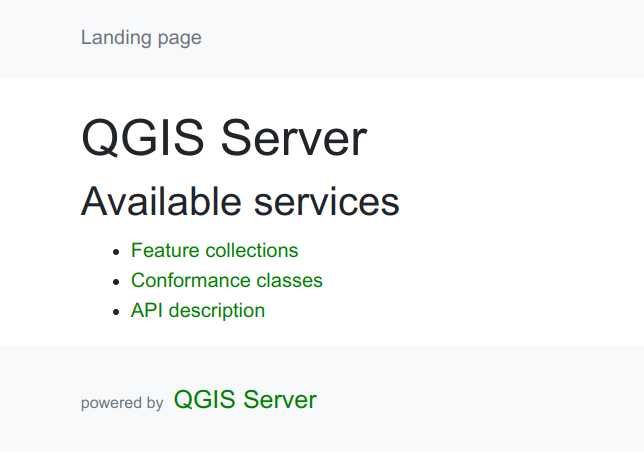
All going well, the QGIS Server landing page should now be visible when visiting the Application Proxy URL above.
Note
It is recommended to try the Application Proxy URL in an incognito browser window to verify that the page is not available to non-logged-in or anonymous users.
Troubleshooting
| Error message | Solution |
|---|---|
| Sorry, but we’re having trouble with signing you in. AADSTS50105: Your administrator has configured the application Pozi Server (‘xxxxxxxx-xxxx-xxxx-xxxx-xxxxxxxxxxxx’) to block users unless they are specifically granted (‘assigned’) access to the application. The signed in user ‘xxxxxxxx’ is blocked because they are not a direct member of a group with access, nor had access directly assigned by an administrator. Please contact your administrator to assign access to this application. | Grant access to the relevant user or users by following Step 3. Assign users. |
| BadGateway: This corporate app can’t be accessed. Connection to the server failed. For more details, check the Application Proxy Connector Event Log for reported errors. | This can happen if the Application Proxy internal URL is accidentally configured with https instead of http. |
| GatewayTimeout: The corporate app cannot be accessed / the service is unable to reach the connector / NoActiveConnector | Make sure that the Application Proxy connector is properly installed and registered with your Entra ID tenant. Check the Application Proxy connector Event Log for reported errors. Also check the network settings to make sure any inactive connectors can reach the service and become active again. |
| GatewayTimeout: The corporate app cannot be accessed Next Steps This application is associated with a connector group that contains no connectors. Make sure to add connectors to this group for the application to be available. | This is reported in Pozi as an EmptyConnectorGroup error. Install the connector by following the instructions in section 1 above. For more information, see the relevant section on the Microsoft Entra ID site. |
This page can’t be found. No web page was found for the web address: https://poziserver-<entra-application-client-name>.msappproxy.net HTTP ERROR 404 | If the top-level Application Proxy URL gives this error, the Private Network connectors may be disabled in Entra ID. Visit https://entra.microsoft.com/#view/Microsoft_AAD_IAM/AppProxyOverviewBlade and check whether Private Network is currently disabled for your tenant. Re-enable it if needed and try again. |