QGIS
Administrators have the option of managing the QGIS projects from either the GIS server (via remote desktop) or directly on their local PC.
These are recommendations for configuring QGIS Desktop on a local PC.
Installation
To install QGIS Desktop, use the OSGeo4W installer, and select the necessary packages.
- Desktop
qgis-ltr
- Libs
gdal-ecwgdal-mss
Favourites
Network File Paths
When adding new file-based layers, use the layer’s absolute file path (UNC) to ensure that the service under which the QGIS Server is running can recognise the path.
Typically your own user account will have certain drives mapped for convenience, so you might be used to working with data using file paths that refer to a drive letter (eg, G:\ or X:\). However, the domain user account that runs QGIS Server often won’t have these drives mapped.
A UNC path is an absolute path that is recognised by all user accounts, regardless of what drives are mapped on startup. An example UNC path might look like this \\servername\GIS\.
Add the UNC path of your GIS data folder as a Favorite in the QGIS Browser panel for easy access. Learn more here.
Also add a shortcut to the UNC location on your PC desktop for extra convenience.
Project Settings
Settings > Options > General > Project Files
- Prompt for confirmation when a layer is to be removed: untick
- Default project file format: QGS XML project format
Transformation Settings
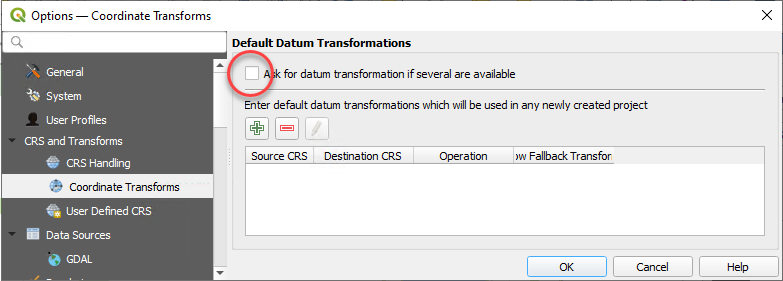
QGIS projects can sometimes fail to return all layers if there are projection transformations specified the in project. You can prevent QGIS prompting you to save transformations in the project by unticking the following setting.
Settings > Options > CRS and Transforms > Coordinate Transforms > Ask for datum transformation if several are available: UNTICK
View Settings
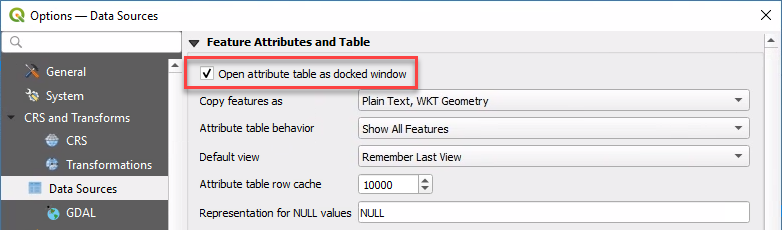
When opening a layer’s attribute table, the default behaviour for QGIS is to open it as a separate window. Use the following setting to instead dock attribute tables under the map in the current QGIS window.
Settings > Options > Data Sources > Open attribute table as docked window > tick
Panels and Toolbars
Right-click on any toolbar to reveal tickboxes for adding and removing panels and toolbars.
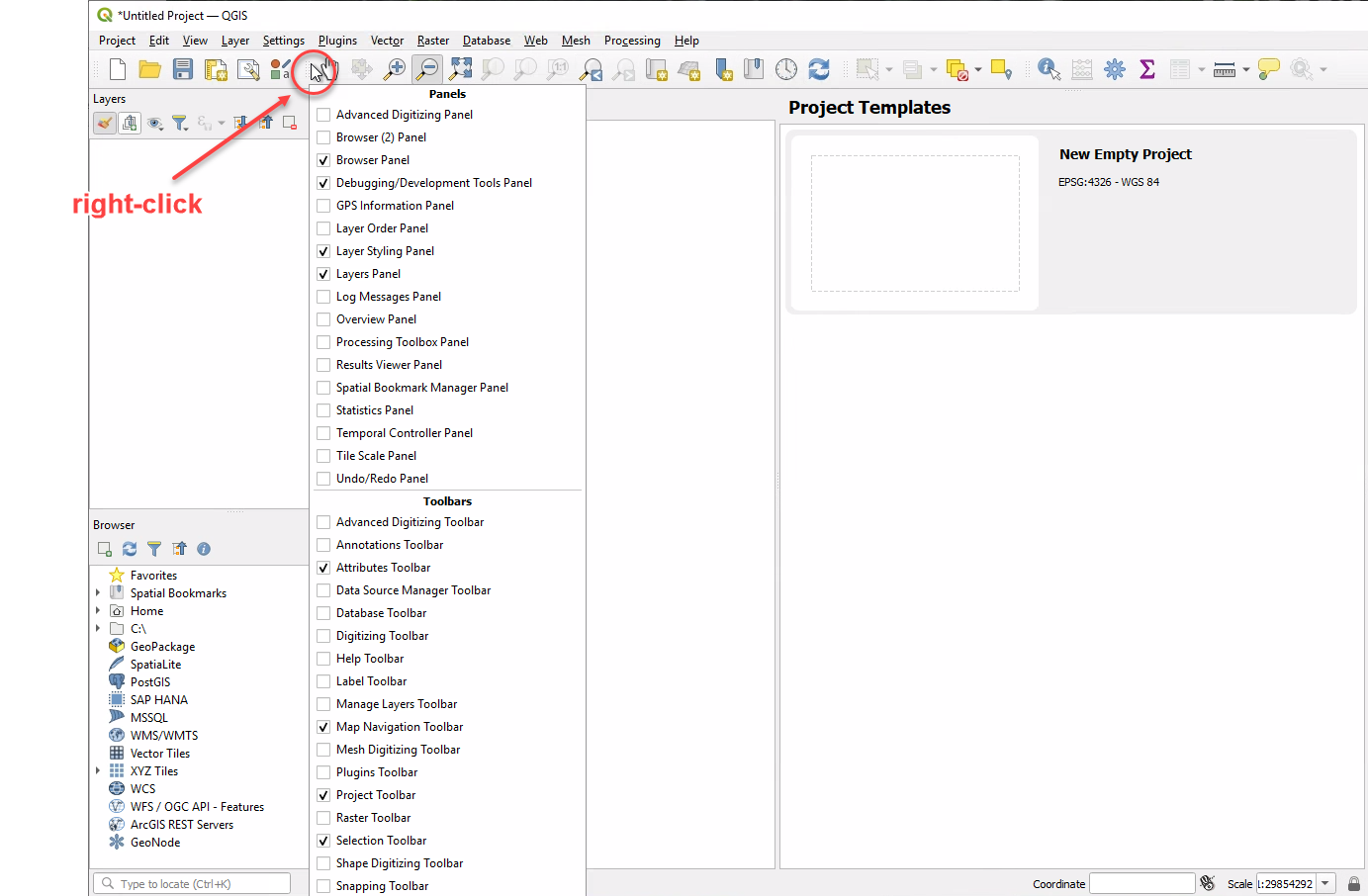
Recommended Panels
- Layer Styling
- Layers
- Browser
- Debugging/Development Tools
Recommended Toolbars
- Attributes
- Map Navigation
- Project
- Selection
Data Sources
Set up your Browser panel to enable access to commonly-used data sources.
Layer Files
Add the path of your GIS data folder as a Favorite in the QGIS Browser panel for easy access. Learn more here.
Browser > Favorites (right-click) > Add a Directory… > navigate to your GIS data folder (use UNC path only!)
Also add a shortcut to the UNC location on your PC desktop for extra convenience.
Do not use drive letters in the shortcut - only UNC paths. The domain user running QGIS Server will typically not recognise any drive mappings that you have on your local PC.
Database Connections
Browser > MSSQL (right-click) > New Connection…
Font Awesome
Pozi’s Font Awesome integration enables administrators to configure icon symbols for their map layers.
- contact your Pozi support provider to request the download link for
qgis-fontawesome-pro-6.4.0.zip - download zip file from link
- unzip file to
C:\Pozi\QGIS Assets\Pozi SVGs\ - confirm that the correct folder structure exists - you should see SVG files in this exact location:
C:\Pozi\QGIS Assets\Pozi SVGs\fontawesome-pro-6\regular\ - QGIS > Settings > Options > System > SVG Paths:
- remove
C:\Users\username\AppData\Roaming\QGIS\QGIS3\profiles\default\svg\ - remove
C:\OSGeo4W\apps\qgis-ltr\svg\ - add
C:\Pozi\QGIS Assets\Pozi SVGs
- remove
Shortcuts
Add shortcuts to your PC desktop or web browser of these frequently used resources for easy access.

Network locations
- GIS data folder (UNC path)
- QGIS projects folder (UNC path)
Note
UNC paths are absolute paths that are recognised by all user accounts, regardless of what drives are mapped on startup.
Examples:
\\servername\GIS\\\servername\c$\Pozi\Projects\
Websites
- Pozi Admin Guide: https://docs.pozi.com/admin-guide/
- Pozi site shortcuts
- live site:
https://<sitename>.enterprise.pozi.com/ - upcoming release preview:
https://staging.pozi.com/main/#/site[<sitename>]/enterprise[true]/
- live site:
- Advanced: QGIS Server Landing Page for troubleshooting
- network:
http://<servername>/pozi/qgisserver/wfs3 - via Application Proxy:
https://<entra-application-client-name>.msappproxy.net/pozi/qgisserver/wfs3
- network:
Miscellaneous
- GDAL Shell:
C:\OSGeo4W\OSGeo4W.bat - QGIS Server log:
C:\Pozi\IIS\QgisServer\qgis_server.log