Search
Open the search interface by clicking on the search button at the top left of the map or in the left panel.
The drop-down list displays any pre-configured search options such as address and other layer specific searches organised by your administrator.
Address Search
- click the Search box
- ensure that the Address search option is selected
- start typing your address
- click on an address from the list
Pozi will zoom to the location and display the What’s Here results, including the address, in the Info Panel.
Configured Search
A site can contain multiple searches that have been configured by your administrator. These might be for things like property number, asset ID, or any other attributes within your data.
These searches will be listed in the search drop down as well. Depending on how they have been configured you may recieved a What’s Here result or go straight to the Feature Details.
WFS Layer Search
The search drop-down list shows all searchable layers. Pick from the list what you’re searching for and start typing to view matching records from any field in the layer - ids, names, description or any other attribute.
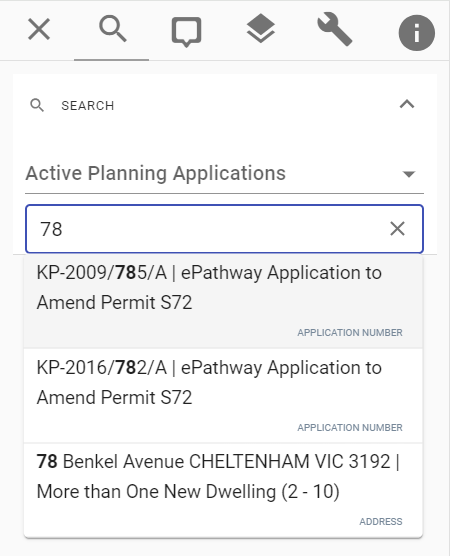
If the layer is not already active, Pozi turns it on for you. When you select a result, the map zooms to the feature.
You can revert back to the default search by clicking on the current search option and then clicking X next to its name.